
Photo & Video Top 2
Similar Photo Search - Pick Your Best Shots
Compare similar photos side by side and keep only the best shots.
Still new, yet already our second most downloaded app and our second most purchased upgrade.
What makes this app great, in a nutshell
Similar Photo Search is an iPhone app that gathers visually similar photos and ranks them by a similarity score (0–100) — just pick one photo as your reference. Compare burst shots and near-identical compositions side by side or overlaid to keep only the best shot, or browse the results to choose photos for family and friends and sort them into an album for each person — all in the same simple flow. Delete, add to an album or favorite the photos you select, in one go. Photos are analyzed on your device and never uploaded to a server, and nothing is ever deleted without your say.
Features
- Pick one reference photo to list burst shots and similar compositions with a similarity score (0–100)
- Searches every image you can see in the iPhone Photos app, including screenshots, every frame of burst shots and iCloud Photos (videos and hidden photos excluded)
- Side-by-side comparison view with zoom and swipe to check expressions and focus
- Narrow searches by date or shooting location using the calendar and map
- Favorited photos are excluded from bulk deletion
- Albums you create appear as colored, numbered badges in results and the comparison view
- Images are analyzed on your device and are never uploaded to a server
Made for moments like these
I want to keep only the best shot from a burst
From bursts of kids, pets or sports, pick the shot with the best expression and focus, then clear out the rest.
→ Similarity-ranked list + side-by-side view
I want to sort photos into a set for each person I share with
Pick a photo from the moment you want to share and similar shots rise to the top. Choose the ones to send, add them to an album for that person, then share it from the Photos app. Change the reference photo and repeat for the next person.
→ Select and add to album
I lose track of which photos went into which album
Albums you create appear as colored, numbered badges in search results and the comparison view, so missed or duplicate additions are easy to spot.
→ Album badges
I took far too many similar shots on my trip
Line up the shots you took at the same spot and calmly decide which one to keep.
→ Side-by-side view and zoom
I only want to search photos from a certain day or place
Use the calendar to pick a date and the map to pick a location to narrow the search.
→ Calendar and map filters
I need storage space, but automatic deletion scares me
The app never deletes anything on its own. You compare, and only the photos you choose are deleted.
→ Select and delete in bulk (favorites protected)
I want to tidy up without uploading photos to the cloud
Photos are analyzed on your device and never sent to our servers or anyone else's.
→ On-device analysis
I want to check tiny differences between two near-identical photos
Overlay the two photos at the same position and zoom, then drag the divider to see what changed.
→ Overlay with the base image (Pro)
I want to search similar photos right from the Photos app
Send a photo from the Share button, and the search starts with it the next time you open the app.
→ Photos app integration (Pro)
What's newNew in version 1.9
NewPro
Search similar photos straight from the Photos app
You can now send the photo you are viewing in the Photos app to Similar Photo Search from the share button — no need to open the app and look for the reference photo again. This is a Pro (paid) feature.
-
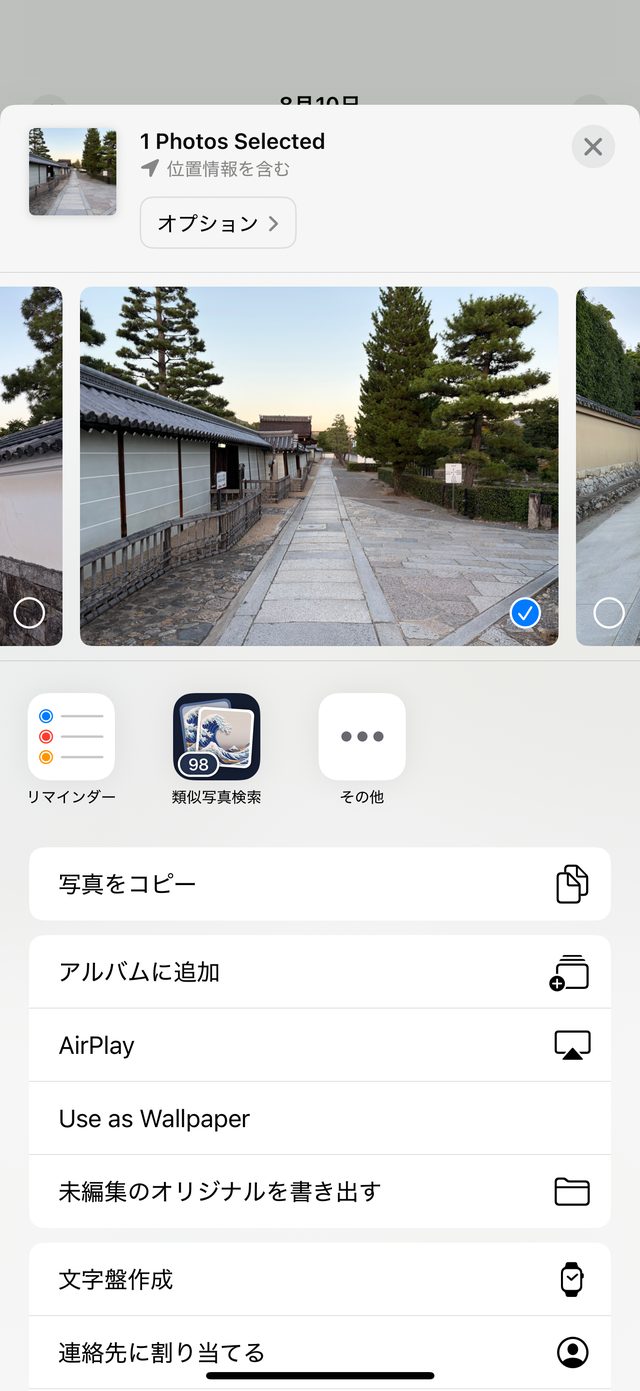
1Open a photo in the Photos app, tap Share and choose Similar Photo Search
-
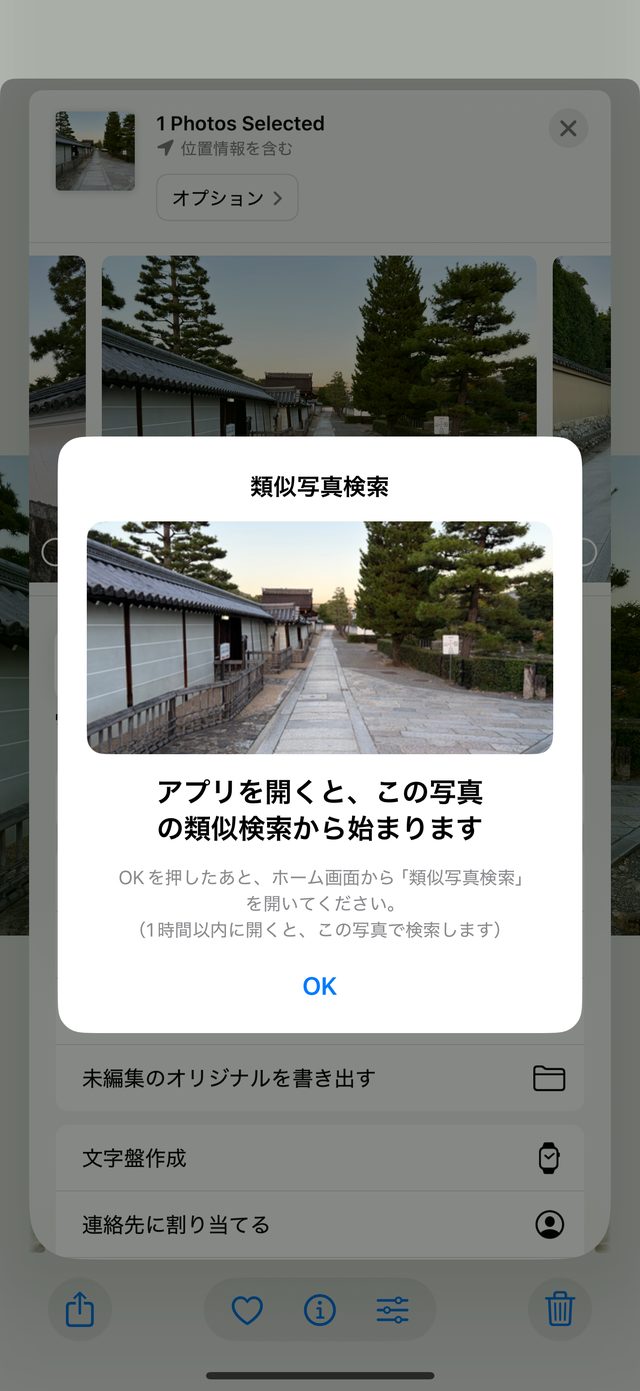
2Check the photo and tap OK
-
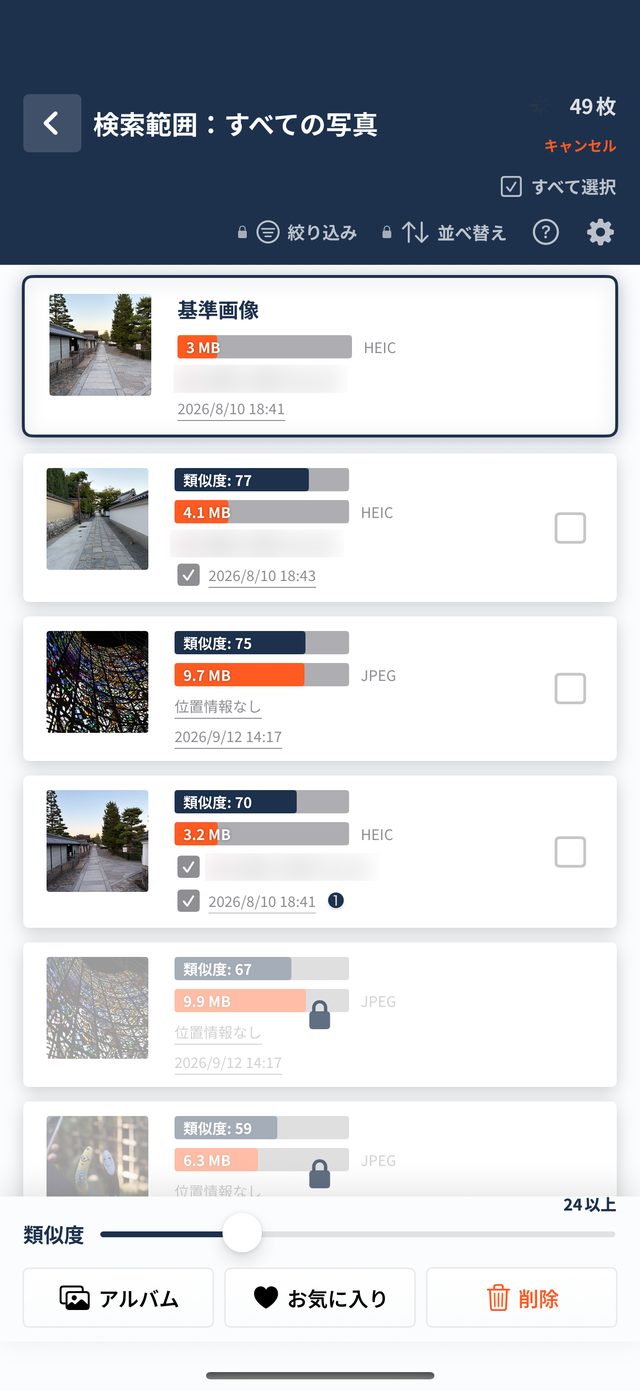
3Open the app and it starts with results for that photo
After sharing, open Similar Photo Search from your Home Screen (within an hour, it searches with that photo).
NewPro
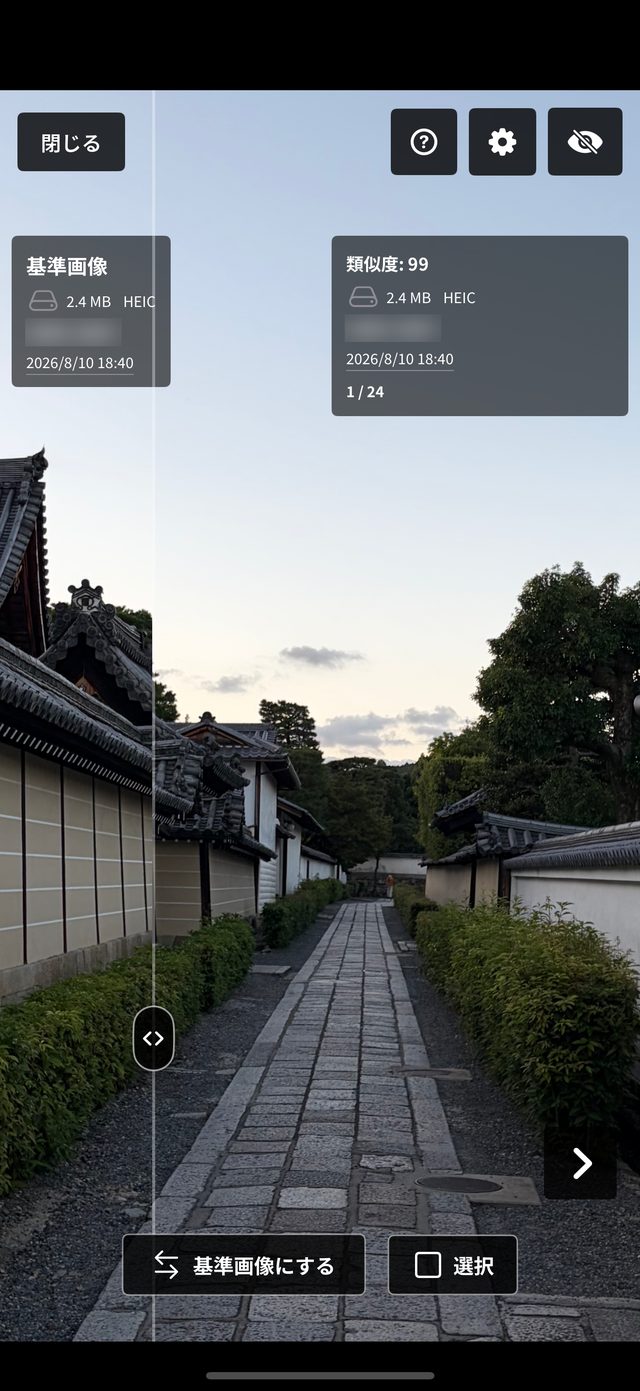
“Overlay with the base image”: line up two photos exactly to spot the difference
The comparison screen can now overlay the reference photo and the similar photo at exactly the same position and size (wipe comparison). The reference photo shows to the left of the dividing line and the similar photo to the right; drag the handle (< >) to see how the very same spot differs between the two. Great for finding tiny differences in focus, expression or stray objects among near-identical burst shots. This is a Pro (paid) feature.
- Turn on “Overlay with the base image” under “Comparison View” in Settings
- Just drag the handle and the two photos switch at the dividing line
- Zoom and pan as you like — the two photos stay aligned at the same position and scale
Other improvements
- A new app icon
- The controls at the bottom of the results screen (similarity slider and Album, Favorites and Delete buttons) are now more compact, leaving more room for the photo list
A closer look
01
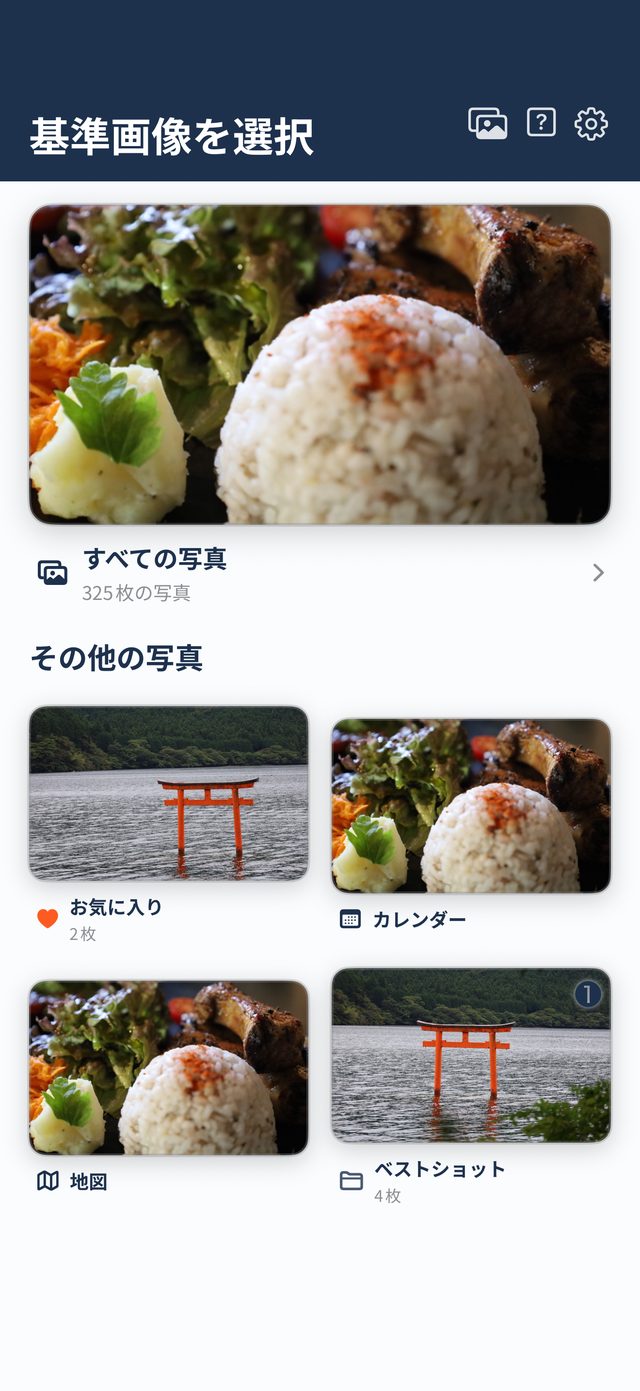
Start from Home to browse your photo library
The Home screen gives you quick cards for all your photos, favorites, and custom albums. You can also browse by shooting date using the Calendar or by location using the Map.
- Quick access to All Photos and smart albums (Favorites, Screenshots, etc.)
- Custom albums show numbered, colored badges so your organization status is clear at a glance
- Top-right buttons provide instant access to Album Management, Help, and Settings
02
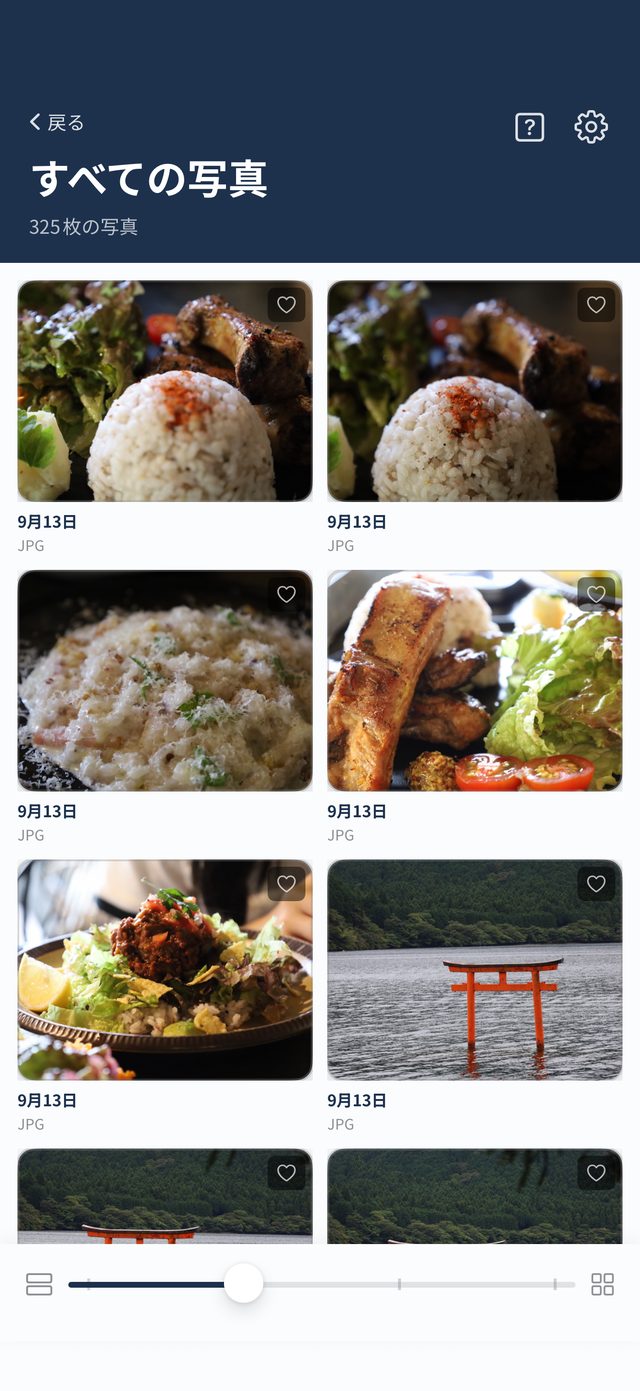
Browse the photo grid and choose a reference image
Simply tap any photo to start a similarity search with it as the reference. Use the slider at the bottom to switch between 1 to 4 columns, and long-press any thumbnail for a full-screen zoom preview.
- Tap the heart icon on any photo to toggle favorite status on the spot
- 1- and 2-column modes display the shooting date and file format (JPG, HEIC, etc.) below each photo
- Smoothly adjust the bottom slider between high-density multi-column browsing and close-up inspection
03
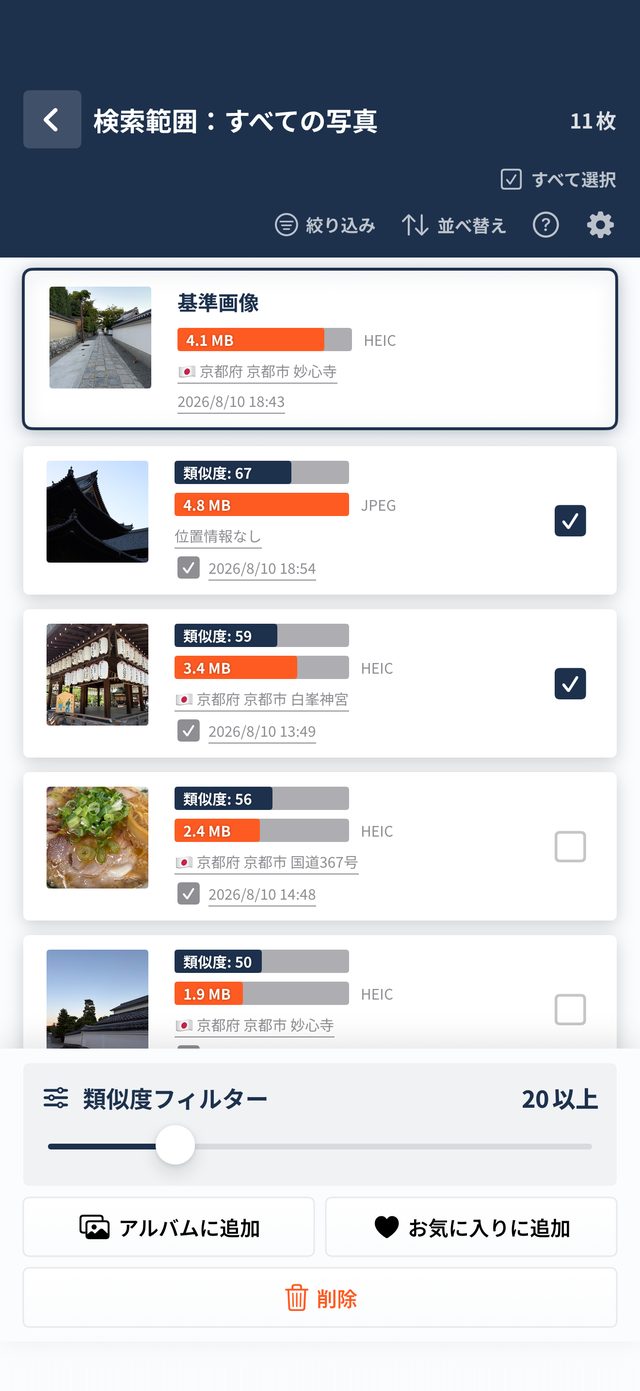
Review similarity scores, details, and organize in bulk
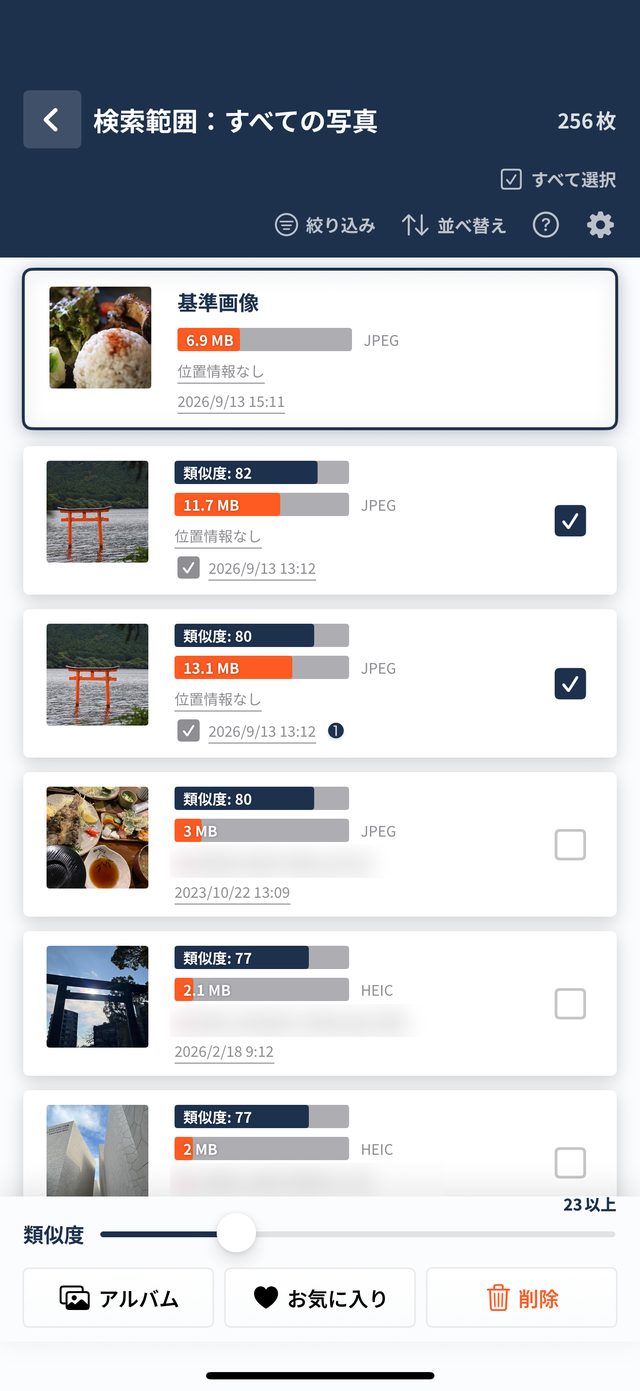
Photos similar to your reference image appear ranked by a 0–100 similarity score. Visual bars for file size, shooting location, and date let you select unwanted duplicates for quick bulk action.
- Checkmarks (☑) identify shots taken on the same date or within 50 meters of the reference photo
- Use the bottom slider to interactively filter candidates by similarity score threshold
- One-tap bulk actions to Add to Album, Favorite, or Delete (favorited photos are protected from deletion)
04
Side-by-side comparison to inspect focus and expressions
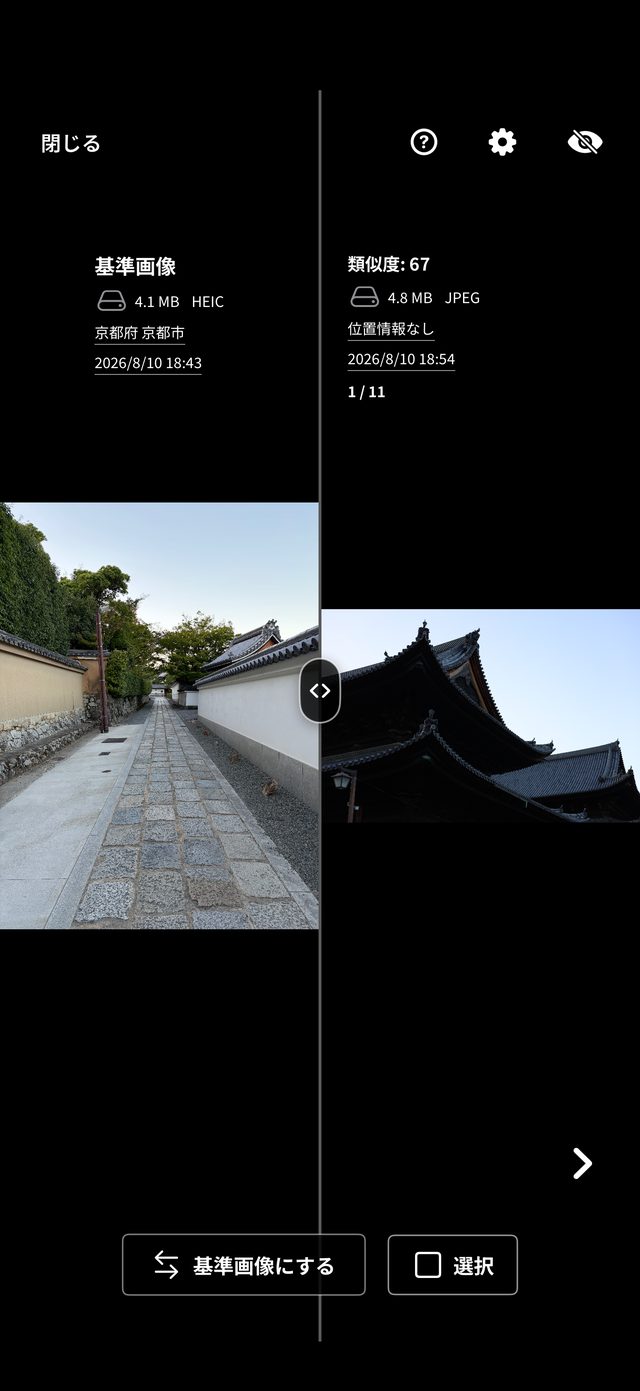
Tap any photo to open the full-screen comparison view with the reference photo on the left and the candidate on the right. Both images zoom and pan in perfect sync, making subtle differences in focus and facial expressions easy to catch.
- Drag the center handle (< >) left or right to adjust split width freely (double-tap to reset to center)
- Synchronized pinch-to-zoom and drag panning on both images, with double-tap zoom toggle
- Tap “Make Reference Photo” to instantly restart the search with the candidate photo as the new base
05
Check each photo up close and mark it with “Select”
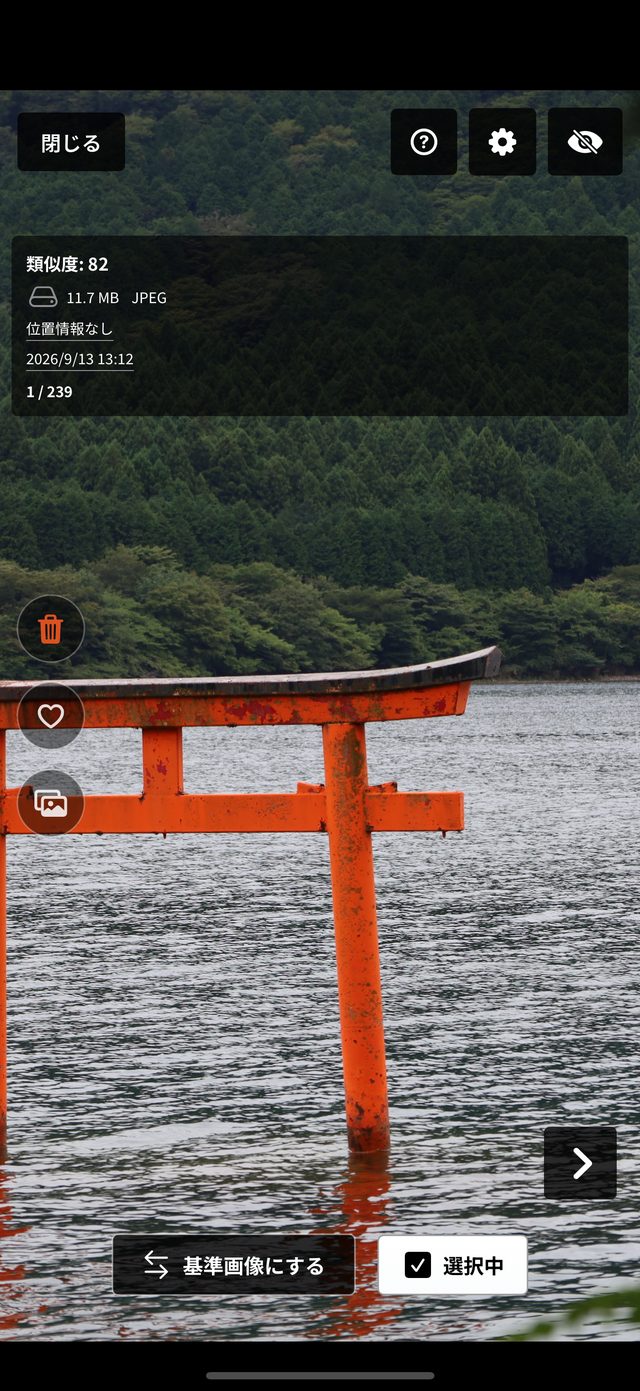
Sometimes unrelated photos show up among the matches — a torii gate among food photos, for example. Tap a photo to check it on the big screen one by one, and press “Select” on any photo you want to delete or organize later.
- Use the arrows to move to the next or previous photo
- Hide the reference photo with the eye button to view a match full screen (Pro)
- You can also delete, favorite or add a single photo to an album right there
06
Your picks stay selected — handle them all at the end
When you close the big screen and return to the list, the photos you selected stay checked. After reviewing everything, handle them all at once with the buttons at the bottom.
- Delete: remove unwanted photos in one go
- Album: add the keepers to an album together
- Favorites: favorited photos are excluded from bulk deletion
07
Filter with precision by date, distance, time, and type
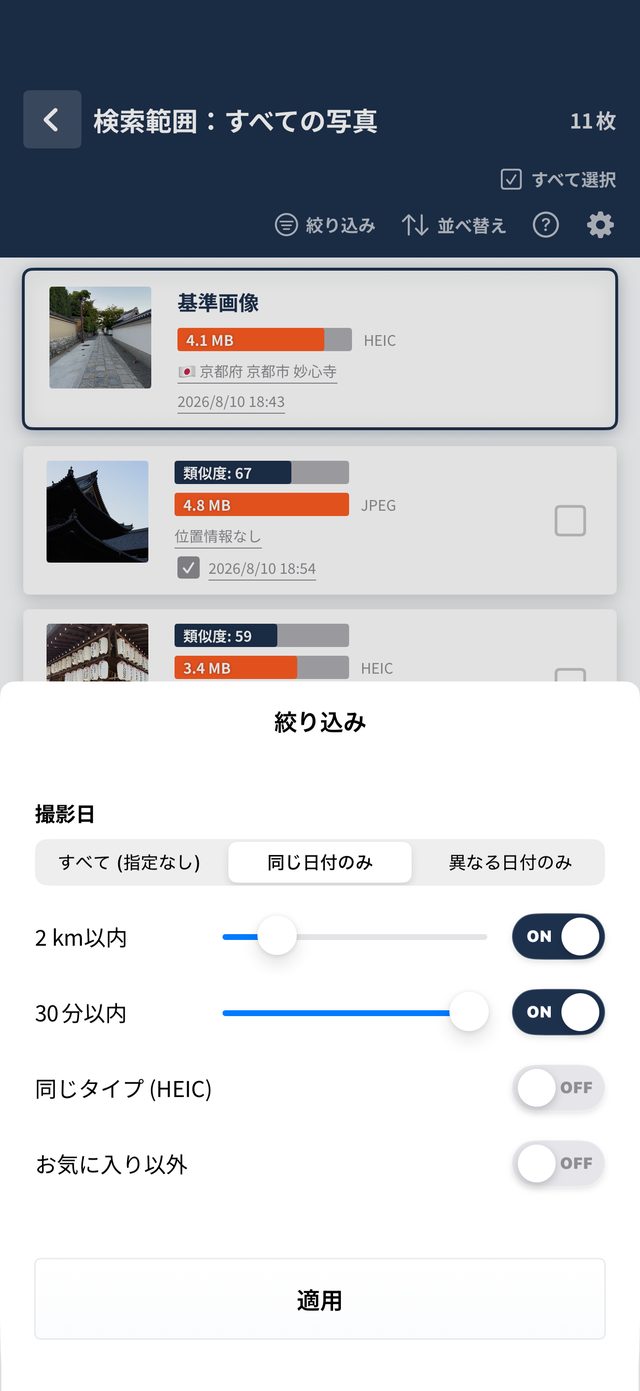
Open the Filter sheet from search results to pinpoint photos with precision. Narrow down candidates by a specific time window, shooting distance, or file type to clean up targeted scenes effortlessly.
- Date filter: choose from All, Same Date Only, or Different Dates Only
- Distance slider: restrict candidates to within a specific radius (km / miles) of the reference photo
- Time slider: limit results to within a set number of minutes before or after the reference photo
- Toggle switches for Same Type (HEIC/JPG) and Exclude Favorites
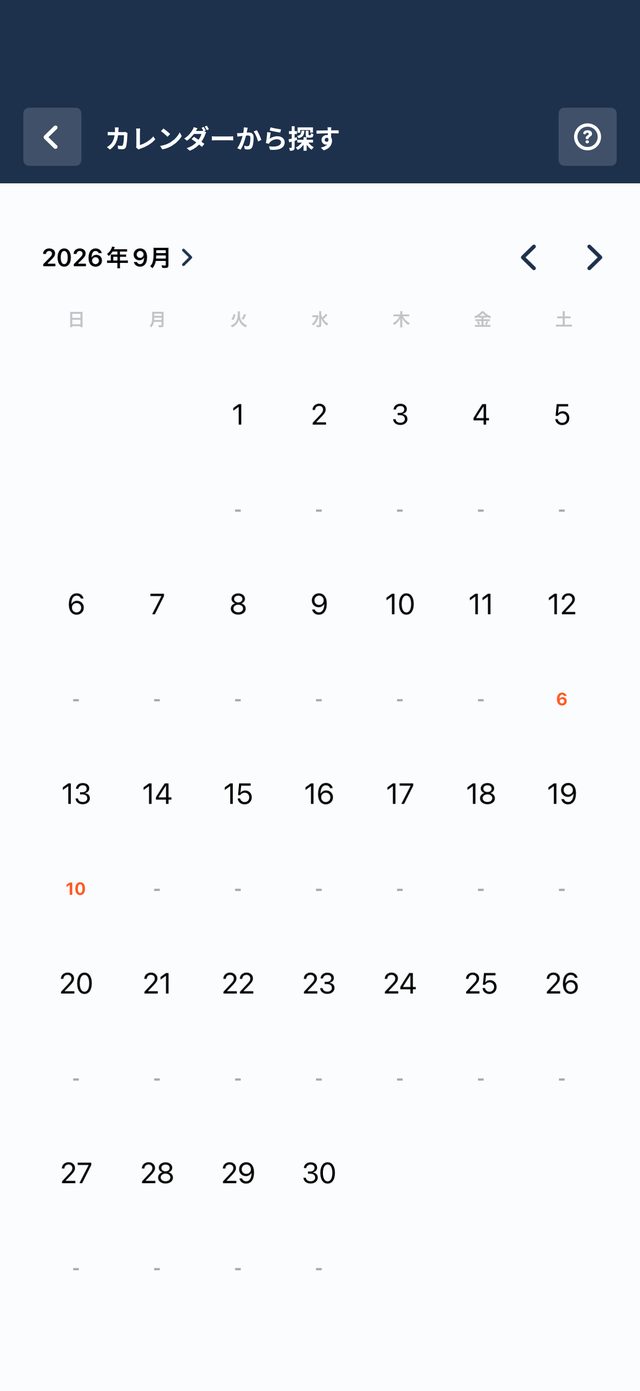
08
Find photos by shooting date on the calendar
Daily photo counts appear in orange numbers right beneath each date on the calendar. Easily spot high-volume shooting days such as trips and family events, and tap to view photos taken on that day.
- Visual calendar view clearly shows shooting days and photo volume for each month
- Tap any date to open that day's photo grid and jump straight into similarity searching
- Tapping dates in search results also lets you navigate directly to that day's photos
Frequently asked questions
How is this different from the Duplicates album in the iPhone Photos app?
Duplicates finds and merges nearly identical copies, such as the same photo saved twice or at a different resolution. Similar Photo Search lists photos that are similar but not identical — bursts, near-identical compositions — with a similarity score, so you can compare them and decide which to keep.
Can it recognize people and sort photos by person automatically?
No. The app does not recognize faces or people. It ranks photos by how similar they look overall, so shots from the same scene or with the same composition tend to appear together. You decide which photos go into which album while looking through the list.
Are my photos sent to a server?
No. Photos are analyzed on your device and are never sent to our servers or any third party's. If you use iCloud Photos, the app may connect to Apple's iCloud to load the original images, and the free version uses the network to show ads.
Could I accidentally delete important photos?
The app never deletes anything automatically. Only the photos you select are deleted, and iOS asks you to confirm first. Favorited photos are excluded from bulk deletion, and deleted photos can be recovered from Recently Deleted in the Photos app for a limited time (usually 30 days).
How much can I do for free?
The core search, comparison and clean-up features are free (with ads and a daily search limit; watching a video ad gives you more searches). Pro or a lifetime purchase removes the search limit and ads and unlocks Pro features such as Overlay with the base image and Photos app integration.
Which devices are supported?
iPhone with iOS 18.0 or later, iPad with iPadOS 18.0 or later, and Mac with Apple M1 chip or later (macOS 15.0 or later).